WinPKR Withdrawal Completed but JazzCash or Easypaisa Balance Not Received
A WinPKR withdrawal can appear as Completed while the expected amount is still missing from JazzCash or Easypaisa. This status is confusing because it looks as though the whole transfer has finished. In practice, the status shown inside the game and the credit shown by the mobile wallet are two different records.
Do not submit another withdrawal just to test the system. First confirm the receiving number, open the wallet’s transaction history, save the WinPKR Game order details and check whether the payout has a reference number. These checks help identify whether the issue is with the withdrawal record, the transfer between systems or the receiving wallet.
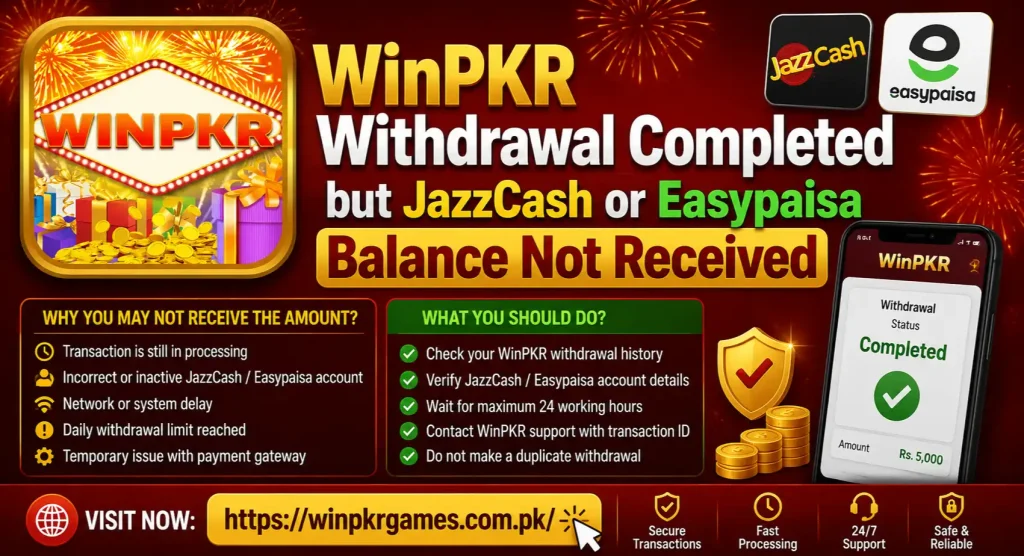
Quick Answer: What Should You Check First?
If your WinPKR withdrawal is completed but the JazzCash or Easypaisa balance has not increased, check these items in order:
- Open the withdrawal record and confirm the amount, date, receiving number and final status.
- Make sure the number belongs to the wallet type selected in WinPKR.
- Check the wallet’s full transaction history instead of relying only on an SMS or push notification.
- Refresh the wallet after reconnecting to a stable internet connection.
- Confirm that the receiving account is active and has not reached an applicable limit.
- Look for a payout, transfer or transaction reference in the withdrawal details.
- Take screenshots before the record changes or disappears from the recent list.
- Ask WinPKR support to trace the payout if no matching credit appears.
Do not share a wallet PIN, login password or one-time verification code with anyone who offers to recover the payment.
What Does “Completed” Mean in the WinPKR Withdrawal Record?
“Completed” usually indicates that the withdrawal request has passed the stages recorded by the game. It does not, by itself, prove that the balance is visible in the destination wallet.
A mobile-wallet withdrawal may involve more than one record:
| Record | What it may show | What you need to verify |
| WinPKR withdrawal record | Requested, processing, rejected or completed | Amount, wallet, account number, order ID and time |
| Payout or transfer record | Whether a payment instruction was created | Transfer reference or trace information |
| JazzCash/Easypaisa history | Whether the receiving wallet was credited | Incoming amount, sender/reference and final wallet balance |
The important question is not only “Does WinPKR say completed?” It is “Can the completed order be matched to an incoming wallet transaction?”
If WinPKR cannot provide a payout reference, the platform may need to investigate its side first. If it provides a valid reference but the wallet has no matching credit, that reference can help the wallet provider locate the transfer.
Why a Completed WinPKR Withdrawal May Not Appear in the Wallet
Several problems can produce the same symptom. Avoid assuming that every missing credit has the same cause.
The wallet balance has not refreshed
The JazzCash or Easypaisa app may still be showing an older balance because of weak internet, an expired session or a temporary app problem. A missing notification does not automatically mean that the transfer failed.
Close the wallet app, switch to a stable connection and open it again. Check the account history after the app loads completely. Do not reinstall the wallet app unless you know the registered SIM is available and you can safely regain access.
The money went to a different number
A single incorrect digit can send a withdrawal to the wrong destination or cause the payout instruction to fail. Compare the number in the completed withdrawal record with the number registered to the wallet. Read the digits individually rather than trusting a familiar-looking ending.
If the displayed number is masked, compare every visible digit and ask support to confirm the complete destination through its recognised process. Never post the full number publicly.
The selected wallet does not match the number
The mobile number may be correct, but the payment method selected during withdrawal may be wrong. For example, choosing JazzCash while expecting the money in Easypaisa creates a mismatch between the payout route and the wallet being checked.
Review both fields in the original order:
- selected payment method;
- receiving mobile number;
- account title, if shown;
- withdrawal amount;
- order or request ID.
Do not edit the saved payment method while the missing withdrawal is being investigated. Changing it can make screenshots and current settings look different from the original request.
The receiving wallet is inactive or restricted
A wallet may be inaccessible, inactive or subject to an account review. Applicable transaction limits can also depend on the account and service. WinPKR may record the payout stage as complete before you become aware of a receiving-wallet problem.
Open JazzCash or Easypaisa directly and confirm that you can access the account normally. Check for an account notice or verification request. If the wallet provider shows a restriction, resolve it through the provider rather than entering personal documents into an unknown form sent over chat.
The WinPKR status changed before final wallet credit
The game and payment channel may update at different points. A completed label can therefore appear before the receiving app displays a matching entry. Because processing conditions can change, avoid relying on an unverified fixed waiting time.
Record the exact status, date and time. If the transfer remains missing, ask support whether “Completed” means that a wallet provider accepted the payout or only that WinPKR closed the internal request.
The wallet received the money but no alert appeared
SMS and push notifications can be delayed, blocked or hidden. Check the actual balance and incoming transaction list. Search around the withdrawal time and compare the amount with the WinPKR record.
Also check whether another transaction changed the balance shortly after the credit. The current total alone may not make the incoming payment obvious.
Recently changed payment details created a mismatch
If you changed the wallet number or payment method shortly before requesting the withdrawal, the payout may have used the details attached to the order at submission time. Current profile details do not necessarily prove where the earlier order was sent.
Support should investigate the destination stored against the specific withdrawal ID, not only the payment method currently visible in your profile.
The same withdrawal is displayed twice or the record is stale
An app cache problem may duplicate or preserve an older record. Confirm the unique order ID and amount before reporting it. Two identical-looking entries are not necessarily two separate payouts.
Refresh the page or sign in through one recognised access method. Avoid clearing all app data until you have saved your account ID, order details and working login method.
A Safe Step-by-Step Check Before Contacting Support
Open the exact withdrawal order
Go to the account or transaction area and find the missing withdrawal. Save the following information:
- withdrawal amount;
- request date and time;
- final status;
- receiving wallet type;
- masked receiving number;
- withdrawal order ID;
- payout reference, if available.
Take one screenshot showing the full relevant screen. Crop unrelated balances or personal information if the image will be shared.
Compare the destination details
Open the receiving wallet separately. Confirm that the registered number matches the destination saved in the withdrawal order. Check the wallet name as well as the digits.
If the game shows only part of the number, do not guess. Ask support to confirm the destination attached to that particular order.
Check the wallet transaction history
Do not stop after viewing the home-screen balance. Open the wallet’s transaction history and check for incoming transactions around the recorded payout time.
Look for:
- the same amount;
- a payment or transfer reference;
- a credit followed by another outgoing transaction;
- a failed, reversed or adjusted entry;
- any account notice that affects receiving money.
Refresh both services once
Use one stable internet connection. Close WinPKR and the wallet app, reopen them and check both histories again. If the apps display old information, restarting the phone can refresh background services.
One clean refresh is enough. Repeated login attempts, OTP requests and reinstalls can create an additional account-access problem without locating the payment.
Check whether a payout reference exists
An order ID created by WinPKR and a transfer reference created by a payment provider may be different. Save both if they exist.
Ask a direct question:
Please confirm the destination wallet and provide the payout or transfer reference linked to this completed withdrawal order.
A screenshot saying “Completed” is useful, but a traceable transfer reference is stronger evidence when contacting a wallet provider.
Keep the account unchanged during the investigation
Do not change the registered mobile number, wallet selection, password or payment details unless recognised support instructs you to do so for a verified reason. Do not create a second WinPKR account to submit another withdrawal.
Preserving the original settings makes it easier to compare the withdrawal record with the receiving account.
JazzCash Balance Not Received After WinPKR Shows Completed
If JazzCash was selected, open JazzCash and inspect the incoming transaction record. Confirm that the number in the WinPKR order is the number linked to the JazzCash account you are checking.
Use this checklist:
- Confirm access to the correct JazzCash account.
- Review the transaction history, not only the SMS inbox.
- Compare the amount and time with the WinPKR order.
- Check whether the wallet shows any account or limit notice.
- Ask WinPKR for the payout reference if there is no credit.
- Contact JazzCash through a channel listed on its official website if a valid transfer reference exists but cannot be matched.
JazzCash states on its official contact page that it will not ask for a PIN, OTP or password. Apply the same rule to anyone claiming to represent WinPKR. Never disclose those credentials while discussing a missing withdrawal.
Easypaisa Balance Not Received After WinPKR Shows Completed
For an Easypaisa destination, first confirm that the withdrawal number belongs to the Easypaisa account you can currently access. Then inspect the account history for a matching incoming amount.
Use this sequence:
- Open Easypaisa through its recognised app or access method.
- Check the complete transaction list.
- Compare the mobile number, amount and withdrawal time.
- Look for an account-access, verification or transaction-limit notice.
- Obtain the payout reference from WinPKR.
- Use the contact information published in the Easypaisa FAQs if the reference exists but the credit is absent.
Do not use a support number copied from an unverified comment, social-media reply or private message. Start from the provider’s own website or app.
Which Support Team Should You Contact First?
The evidence tells you where to start.
| What you found | Contact first | What to request |
| WinPKR says completed but shows no payout reference | WinPKR support | Destination confirmation and transfer reference |
| Destination number or wallet type appears wrong | WinPKR support | Review of the details stored against the order |
| WinPKR provides a reference but wallet has no matching credit | Wallet provider | Trace of the referenced incoming transfer |
| Wallet shows an account restriction or access problem | Wallet provider | Account-specific explanation and recovery steps |
| Withdrawal record disappeared or changed | WinPKR support | Status audit using the user ID, amount and time |
| Wallet shows the incoming credit | No missing-payment case | Reconcile later outgoing or adjusted transactions |
Contacting both sides with a vague message often produces generic replies. Start with the side that holds the missing piece of evidence.
Information to Send to WinPKR Support
A clear report is easier to investigate than repeated messages saying only “money not received.” Include:
- WinPKR user ID;
- withdrawal order ID;
- amount;
- request date and time;
- status shown in the game;
- selected wallet;
- masked receiving number, such as 03XX***1234;
- screenshot of the completed order;
- screenshot of the wallet history around the relevant time;
- device and app version, if the record itself is not loading;
- a request for the transfer reference and destination confirmation.
Do not include your WinPKR password, withdrawal password, wallet PIN or live OTP.
Ready-to-use support message
My WinPKR withdrawal shows Completed, but the amount is not visible in my JazzCash/Easypaisa transaction history. User ID: [ID]. Withdrawal order: [order ID]. Amount: PKR [amount]. Request time: [date and time]. Destination: [wallet name and masked number]. Please confirm the destination stored against this order and provide the payout or transfer reference so the payment can be traced. Screenshots of both records are attached.
Send the complete information once. Keep the support ticket or conversation reference for follow-up.
What Not to Do While the Payment Is Missing
Do not pay a “release” or “verification” fee
A private contact may claim that another deposit is required to release the completed withdrawal. Do not send money based on an unsolicited message. A missing payout should be traced through the existing order and reference.
Do not share OTPs, PINs or passwords
These credentials can allow someone to access or authorise actions on your account. A genuine investigation can use an order ID, amount, time and masked number without asking you to reveal a wallet PIN or live OTP.
Do not create another account
A second account can separate your identity, payment method and transaction records. Recover or investigate the existing account instead.
Do not submit repeated withdrawals as a test
Another request does not repair the first one. It can create multiple amounts and order IDs, making reconciliation more difficult.
Do not delete screenshots or messages
Keep original screenshots, ticket numbers and transaction references until the issue is resolved. Avoid editing the image in a way that removes the date, amount or order identifier.
Do not post complete financial details publicly
Mask your phone number, CNIC and account identifiers in public comments. Send evidence only through a recognised support channel.
What If the Withdrawal Was Sent to the Wrong Number?
Report the error immediately through recognised support. Ask WinPKR to confirm whether a payout instruction was actually sent and whether it can still be stopped. Do not assume that a completed transfer can be edited or reversed.
If the transfer reference confirms credit to a different wallet, recovery may require the payment provider’s process and may not be guaranteed. Do not contact or threaten a possible recipient. Preserve the order details and follow the wallet provider’s complaint procedure.
Before future withdrawals, check the wallet name and read every digit of the destination number before confirming.
How to Prevent the Same Problem on a Future Withdrawal
No check can guarantee instant processing, but a clean record reduces avoidable errors:
- use a wallet registered and accessible to you;
- confirm the wallet type and mobile number before submission;
- avoid changing payment details during an active request;
- take a screenshot of the confirmation screen;
- save the order ID;
- keep the registered SIM active;
- maintain access to the receiving wallet;
- check applicable wallet notices or limits;
- make only one request at a time;
- never use unofficial agents to “speed up” a payout.
If WinPKR itself is not loading while you check the order, follow the site’s separate WinPKR app not working guide before changing account or payment information. For broader risk controls, review the WinPKR safe-play article.
Frequently Asked Questions
Final Thoughts WinPKR Withdrawal Completed
When a WinPKR withdrawal shows completed but the JazzCash or Easypaisa balance is missing, treat it as a record-matching problem. Confirm the exact destination, inspect the wallet’s transaction history and obtain the payout reference connected to the completed order.
Contact WinPKR first when the destination or transfer reference is unclear. Contact the wallet provider when a valid reference exists but no matching credit appears. Keep one complete evidence set and never share a PIN, password or OTP.
Most importantly, do not deposit more money, pay a release fee or submit repeated withdrawals while the original payment remains unresolved.
Responsible-gaming notice: WinPKR content is intended only for adults aged 18 and above who meet applicable legal requirements. Real-money gaming can cause financial loss. Never borrow to play, chase losses or deposit money while an account or withdrawal issue remains unresolved.